 AI Trends
Sasha Blumenfeld ·11/16/2026


Management keys no longer have to come with full admin access to your whole organization. Now you can make a key read-only, limit it to one workspace, or both, so each key can only do the job it was created for. Read-only keys can view API keys, activity, and usage, and read/write keys can also create, update, and delete API keys. If a key leaks or gets misused, the damage stays contained.
Available today to every organization, on every plan. Create a key from your workspace’s Keys page or from Management API Keys, and see the management API keys guide for the routes each kind of key can call.
Teams run their own workspace, and now their automation can too
As organizations grow on OpenRouter, they split their work into workspaces, often one per team. Each team runs its own workspace, and Organization Admins look after what everyone shares: credits, budgets, and organization settings.
Until now, a management key always had full read and write access to the whole organization. A team that wanted to automate its own workspace had to use a key that could reach every other workspace too.
Now each key has two settings. Scope sets where a key works: one workspace, or the whole organization. Access level sets what it can do there: read only, or read and write. Workspace Admins can create keys for their own workspace, so a deploy pipeline can rotate a team’s API keys, an agent can set up guardrails, or a script can add teammates to the workspace, without any of them reaching another team’s workspace.
Scope keeps a key inside one workspace
A workspace-scoped key only works on its own workspace. If a request names another workspace, or a resource that belongs to one, OpenRouter refuses access. A buggy agent or a leaked key can’t reach the rest of your organization.
Inside its workspace, the key can manage API keys, members, guardrails and guardrail policies, your own provider keys, observability destinations, and presets. It can read the workspace’s budgets, activity, and analytics.
Budget limits, credits, and organization settings stay with your Organization Admins. A team can automate everything inside its workspace and still can’t raise its own workspace budget. Setting a workspace budget, creating or deleting workspaces, managing organization members, and private endpoints still need an organization key, which works the way it always has.
Read-only access lets tools look without changing anything
Access level is the second setting, and it applies to workspace keys and organization keys alike. A read-only key can call the read routes its scope allows, including analytics queries. Any request that would create, change, or delete something returns an error.
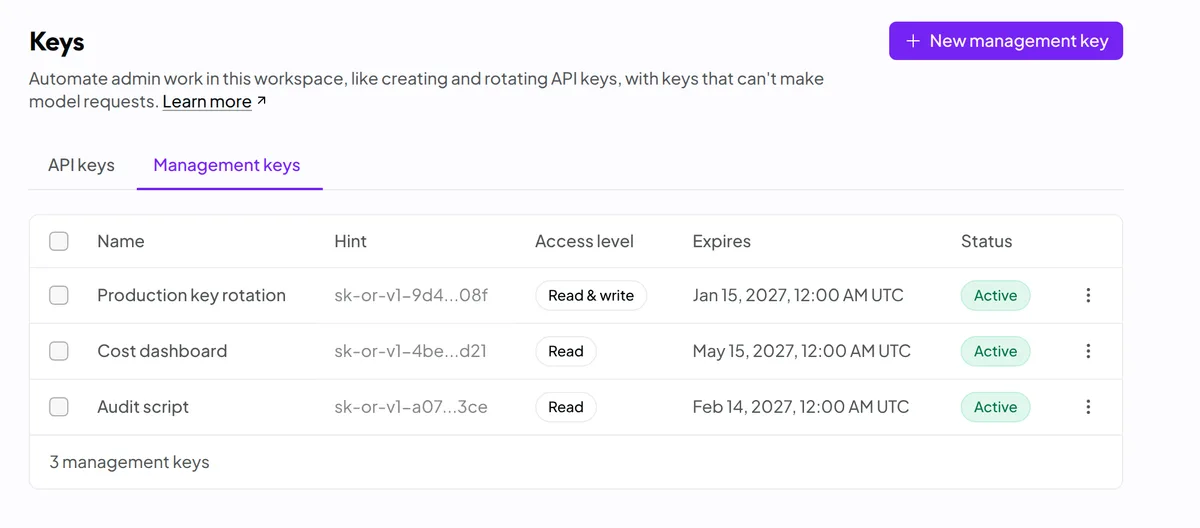
That fits the tools that only need to look. A cost dashboard can pull usage, a monitoring agent can watch activity, and an audit script can list keys, guardrails, and provider keys. You can connect a new reporting or audit tool without giving it write access to your account.
Give each job a key with only the access it needs
Scope and access level combine into four kinds of key:
- An agent that creates and rotates API keys for one team gets a read/write key for that team’s workspace.
- A usage dashboard for one team gets a read-only key for that team’s workspace.
- An organization-wide audit or cost tool gets a read-only organization key.
- Anything that creates workspaces or sets budget limits keeps a read/write organization key.
Both settings are fixed when you create a key, so a key can’t gain access later. To change either, create a new key and delete the old one.
Create a key in the dashboard
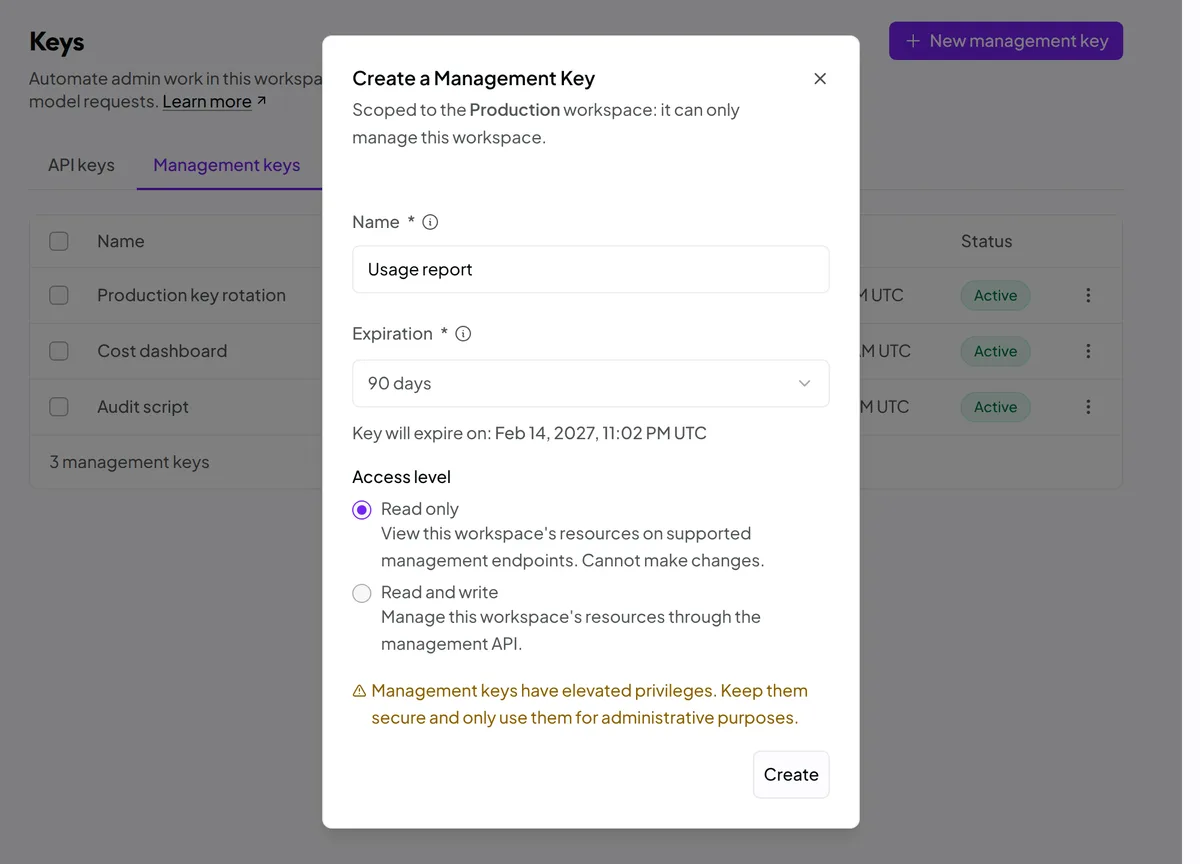
- Open the workspace, go to Keys, and select the Management keys tab. Workspace Admins can create keys for their own workspace, and Organization Admins can create them for any workspace.
- Click New management key. The dialog shows which workspace the key is scoped to.
- Enter a name, choose an expiration, and pick Read only or Read and write under Access level.
- Copy the key when it’s shown. You won’t see it again.
For a key that covers the whole organization, Organization Admins use the Management API Keys page.
Your agents and tools use the key the way they use a management key today, as a Bearer token on the management API:
curl https://openrouter.ai/api/v1/keys \
  -H "Authorization: Bearer $MANAGEMENT_KEY"
To review the management keys you already have, open Security settings, go to Key safety, open Filter keys, and select Show management keys. Each active key is listed with its owner, last use, and expiration. The management API keys guide lists every route each kind of key can call.