人工智能
在 Amazon Quick Sight 图层地图中使用 GeoJSON 可视化点和路线借助 Amazon Quick Sight 图层地图,您现在可以绘制点和路线,例如城市中各门店的位置,或从机场出发的航班。地理空间地图可帮助企业发现与位置相关的模式,例如某个区域的业绩表现如何,或客户集中在何处。Amazon Quick Sight 通过多种地图类型支持这一需求,包括点地图、填充地图和图层地图。在 图层地图首次推出时,您可以上传 GeoJSON 文件来绘制自定义形状图层,例如销售区域或行政区,并将这些形状与数据集关联。这种方式能很好地处理区域和边界,但无法覆盖区域内的各个具体位置,也无法覆盖它们之间的路线。
图层地图现在通过同一 GeoJSON 工作流支持另外两种几何类型: Point 和 LineString。点用于标记具体位置,例如单个门店或设施站点。LineString 用于描绘位置之间的路线,例如配送路径或机场之间的航班。
Amazon Quick Sight是 Amazon Quick的商业智能(BI)能力,是一项统一的 BI 服务。它大规模提供现代化的交互式仪表板、自然语言查询、像素级精确报表、机器学习(ML)洞察以及嵌入式分析。Amazon Quick 将用于业务洞察、研究和自动化的 AI 智能体整合到一个集成体验中,帮助您更智能、更高效地工作,同时保持安全与访问策略。
本文将介绍图层地图所需的数据集和 GeoJSON 结构。我们还会说明点和线在图层地图视觉对象中的工作方式,以及何时选择哪一种。最后,我们将介绍控制视口、对几何图形分层以及以编程方式更新 GeoJSON 文件的高级技巧。
数据集结构注意事项
图层地图从 GeoJSON 文件获取形状,从 Quick Sight 数据集获取指标,并通过共享键将两者关联。您如何组织这两者,决定了地图能够显示什么内容。本节介绍开始之前需要准备的内容,以及 GeoJSON 文件是如何组织的。
先决条件
以下是在 Quick Sight 中创建图层地图之前需要满足的先决条件:
- 描述几何图形的 GeoJSON 文件。
- 保存指标和维度的 Quick Sight 数据集。
- Quick Sight 数据集与 GeoJSON 文件之间共享的关联键。
- GeoJSON 文件必须保存为 .geojson 格式,支持的最大文件大小为 100 MB。
GeoJSON 文件的结构
GeoJSON 是一种基于 JSON 的格式,用于描述点、线等地理要素。
{
  "type": "FeatureCollection",
  "features": [{
    "type": "Feature",
    "geometry": {
      "type": "Point",
      "coordinates": [88.4, 22.6]
    },
    "properties": { "prop0": "value0" }
  }, {
    "type": "Feature",
    "geometry": {
      "type": "LineString",
      "coordinates": [
        [88.2, 22.4],
        [88.9, 23.1],
        [89.5, 22.8],
        [90.1, 23.6]
      ]
    },
    "properties": { "prop0": "value0" }
  }]
}
该文件的结构如下:
- FeatureCollection 是整个文件。它的类型为 FeatureCollection ,并包含一个 features 数组。
- Feature 是单个地图元素。它包含一个 geometry (形状)和一个 properties 对象,后者保存关联键。
- geometry has a type (Point, LineString, or Polygon) and its coordinates. The coordinates hold a single [longitude, latitude] position for a Point, and an ordered list of positions for a LineString.
Configuring the Quick Sight dataset and its GeoJSON
In Quick Sight, when you configure a layer in a layer map visual, there are two primary settings to consider. The first is the Geometry type to visualize, which sets which geometry from the GeoJSON file renders: Points, Lines, or Polygons. A layer renders one geometry type at a time, so when a file mixes types like the preceding example, only Features of the selected type appear on the map. The second is matching the Shape file key field to the Dataset key field, which links each Feature in the GeoJSON to a row in your Quick Sight dataset. The field names don’t need to be identical, but the values do. The following two examples show this end to end, first a LineString layer and then a Point layer.
Example: LineString layer
Consider example data showing a flight from JFK to a destination city like Los Angeles. The GeoJSON structure for a single datapoint is configured as follows:
{
  "type": "Feature",
  "geometry": {
    "type": "LineString",
    "coordinates": [
      [-73.7781, 40.6413],
      [-85.5627, 40.6407],
      [-97.1415, 39.4569],
      [-108.1612, 37.1753],
      [-118.4085, 33.9416]
    ]
  },
  "properties": { "route_id": "JFK-LAX" }
}
The corresponding row in the Quick Sight dataset contains the following information:

Figure 1: Dataset row for the JFK-LAX route, keyed by route_id
The route_id field is used to join the Quick Sight dataset with the GeoJSON file. The GeoJSON holds one such feature per route, and the dataset one row per route. The Geometry type to visualize is set to Lines.
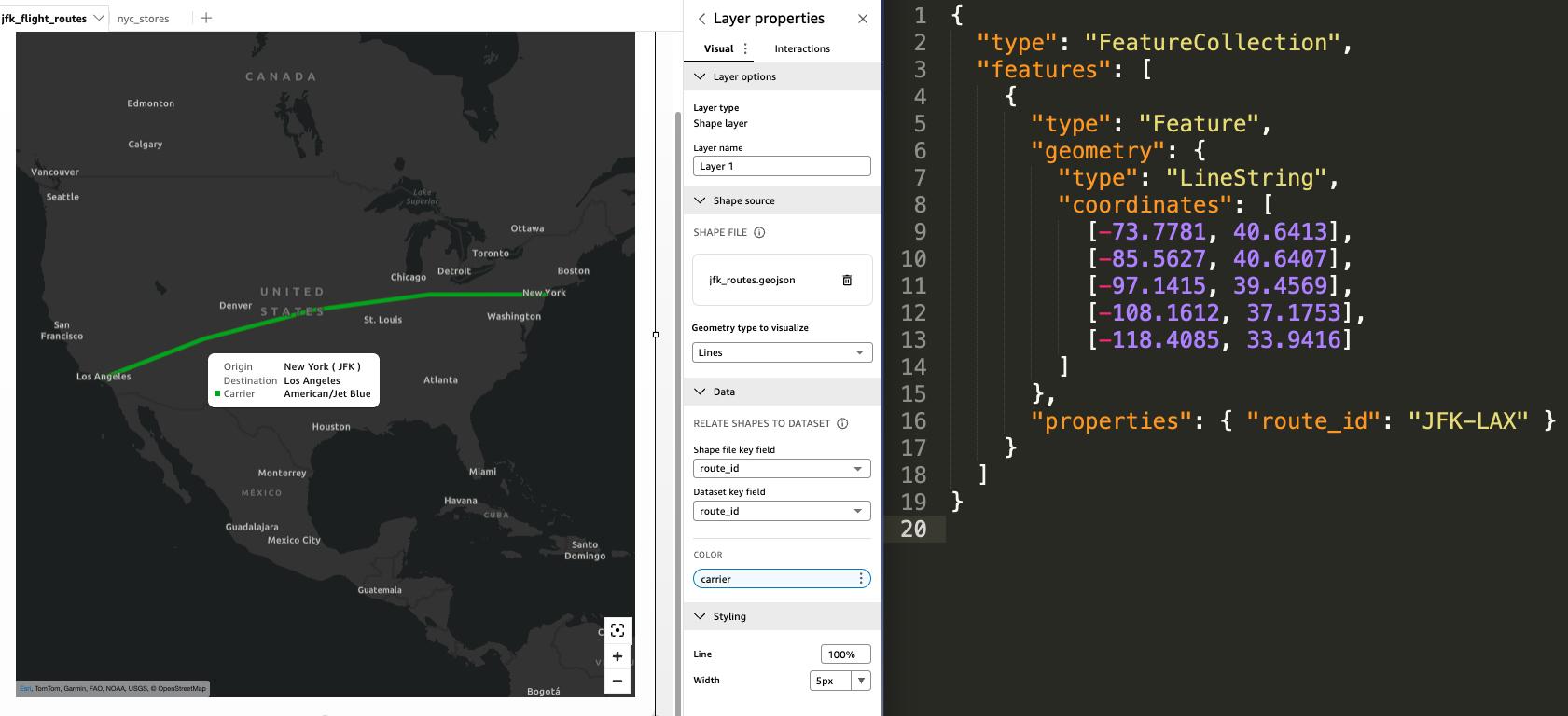
Figure 2: The JFK-LAX route drawn as a LineString layer
Example: Point layer
Consider example data showing a retail store location like Long Island City. The GeoJSON structure for a single datapoint is configured as follows:
{
  "type": "Feature",
  "geometry": {
    "type": "Point",
    "coordinates": [-73.9490, 40.7447]
  },
  "properties": { "store_id": "S-109" }
}
The corresponding row in the Quick Sight dataset contains the following information:

Figure 3: Dataset row for a store, keyed by store_id
The store_id field is used to join the Quick Sight dataset with the GeoJSON file. The GeoJSON holds one such feature per store, and the dataset one row per store. The Geometry type to visualize is set to Points.
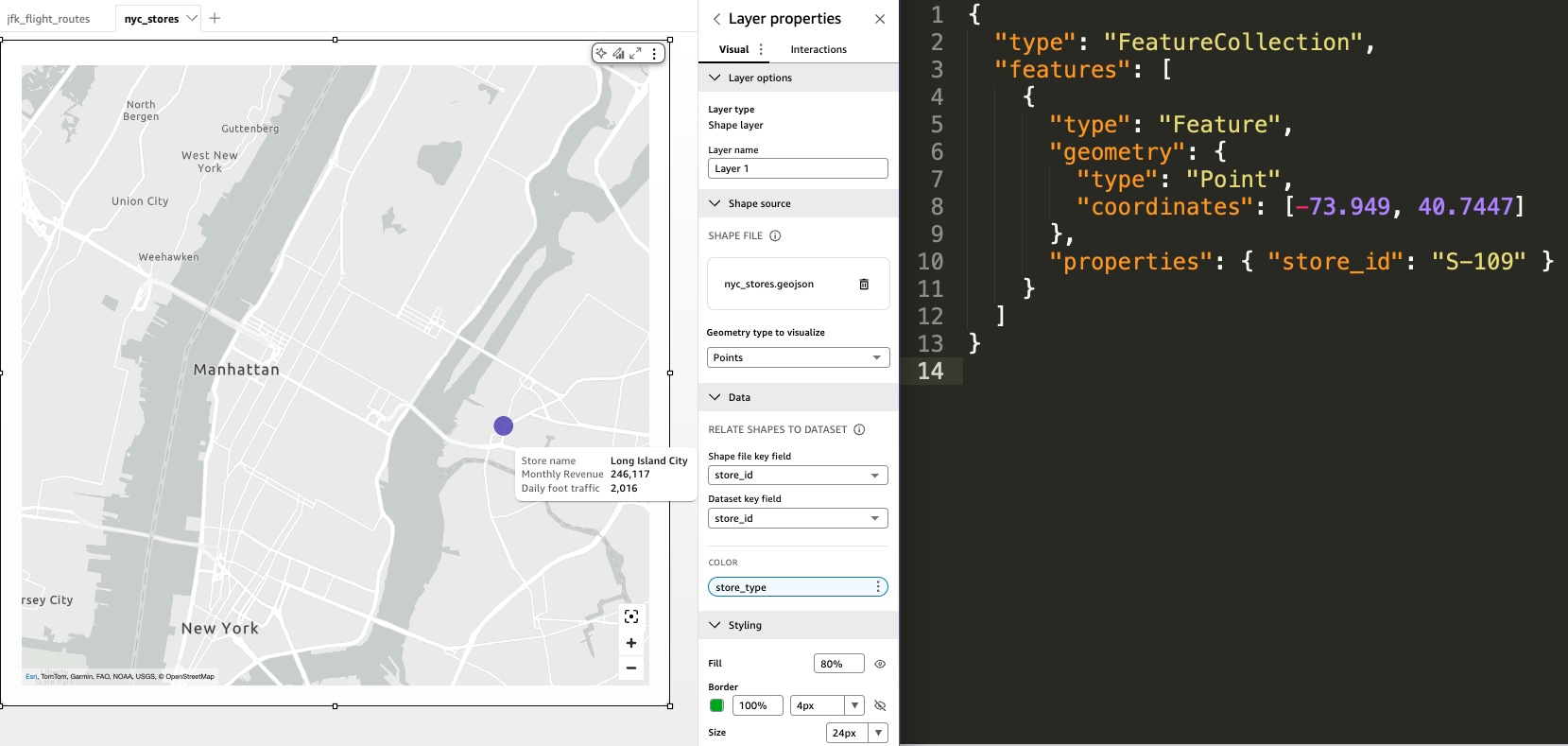
Figure 4: A store plotted as a Point layer
Lines on layer map visuals
Layer map visuals now support LineString geometry, connecting an ordered list of coordinates into a single path. As covered in the data structure section, each route is one feature, and its coordinates are the ordered positions the map connects in sequence.
Use lines when the relationship between locations is what you want to show, such as flight paths, delivery routes, shipping lanes, or pipeline segments. The visual draws each path from the coordinates in your GeoJSON file rather than generating it from your data at load time. A field from your joined dataset can determine the line color encoding, so you can group routes by whatever that field represents. In addition to color, you can customize lines with width and opacity controls to adjust visual prominence and clarity on the map. The join key in the GeoJSON properties object ties each LineString to the dataset row behind its tooltip and color.
For example, an airport operations team might map the flights leaving New York (JFK) on a given day. The GeoJSON file holds one LineString per route, keyed by a route ID that joins to the dataset. Each line starts at JFK and ends at its destination, such as Los Angeles, Chicago, or Miami. The dataset supplies the origin, destination, and carrier that show up in the tooltip.
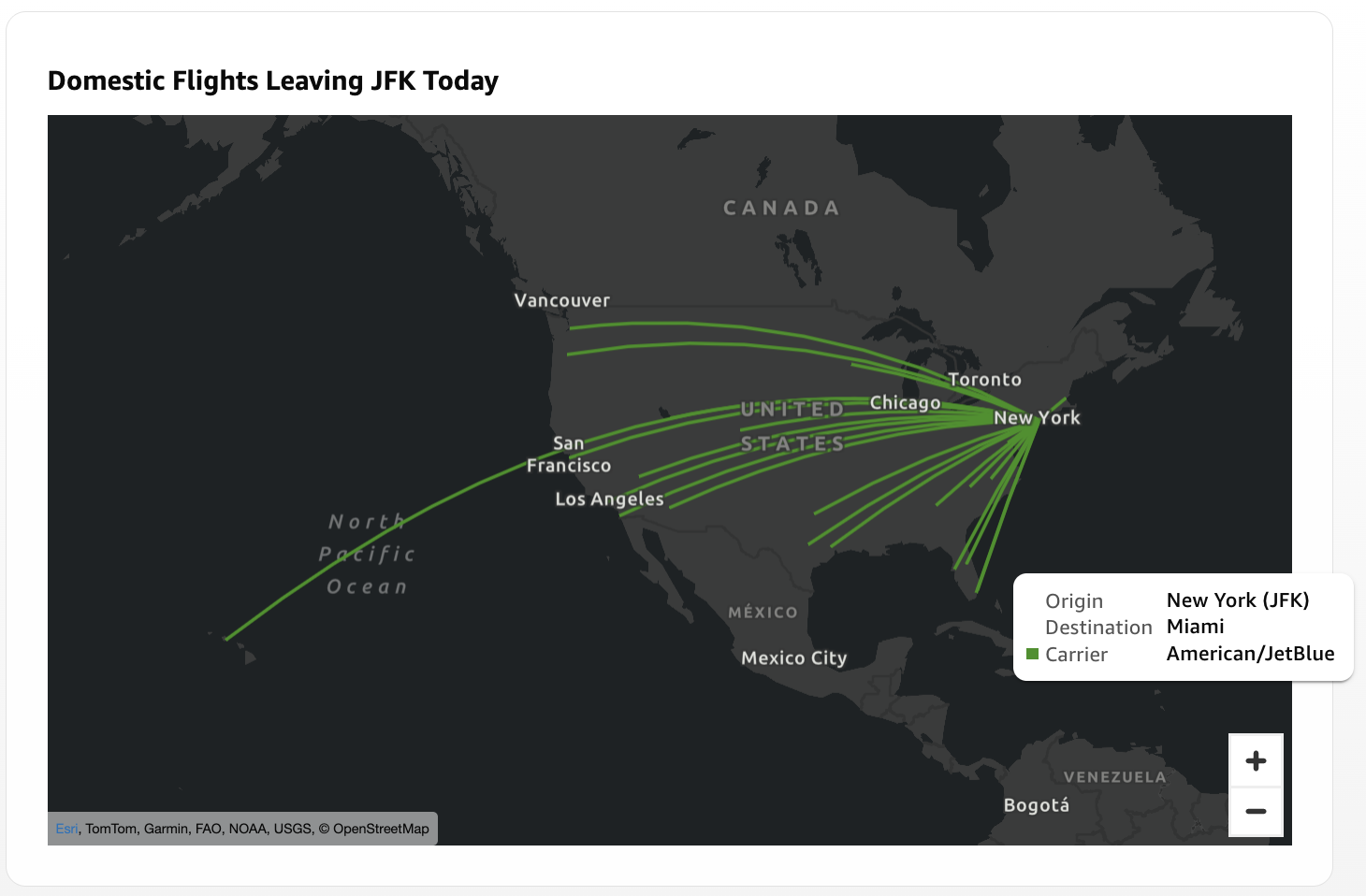
Figure 5: Flights leaving JFK drawn as LineString routes to multiple destinations
Points on layer map visuals
Amazon Quick Sight offers a native point map visual type that geocodes location names automatically and refreshes with your SPICE schedule or Direct Query connection. It supports dynamic point sizing, color encoding, and point styles such as cluster points and heatmap density gradients. It works best with data that changes frequently and where you want the map to respond to those changes visually.
With the added support for GeoJSON point layers in layer map visuals, Quick Sight now offers a second point mapping capability with a few key differences. Layer map visual points use a uniform marker size and don’t support geocoding, so you provide explicit coordinates in the GeoJSON file. In return, you can control the viewport precisely, locking the map to an exact geographic region, and disabling panning and zooming.
The following table summarizes the key differences:
| Feature | Point map | Layer map visual points |
| Data source | Latitude/longitude values or geolocation names in your dataset | GeoJSON Point features joined to your dataset by a shared key |
| Geocoding | Recognizes city, county, state, country, and postal code automatically | Not available. Must provide explicit coordinates in the GeoJSON file |
| Location updates | Mapping updates automatically with SPICE refreshes or Direct Query as location values change | Visual uses a static GeoJSON file for point locations. Requires manual re-upload or API call to update geometry |
| Viewport | Auto-fits to your data, panning and zooming always enabled | Auto-fits by default, can configure if panning and zooming is allowed |
| Appearance | Size and color can be encoded from the dataset. Point style configuration available (basic, cluster, heatmap) | Customizable uniform marker size, fill opacity, border color and thickness. Color can be encoded from the dataset |
Choose layer map visual points when:
- You require a locked, non-scrollable viewport.
- Your locations are fixed and curated (such as regional offices, distribution centers, retail stores) rather than changing with each data refresh.
- You plan to combine points with other geometry types (covered in the advanced use cases section).
Consider a retail brand whose regional managers use a Quick Sight dashboard to track store performance across a metro area. The GeoJSON file contains a Point feature for each store with a store ID property that joins to the dataset. The dataset holds the metrics (store type, monthly revenue, daily foot traffic) that drive the tooltip and color encoding. You position the map at the zoom level covering the metro area, then disable map navigation so the map renders at a consistent view on every load. Managers can’t accidentally zoom out to a national or global view.
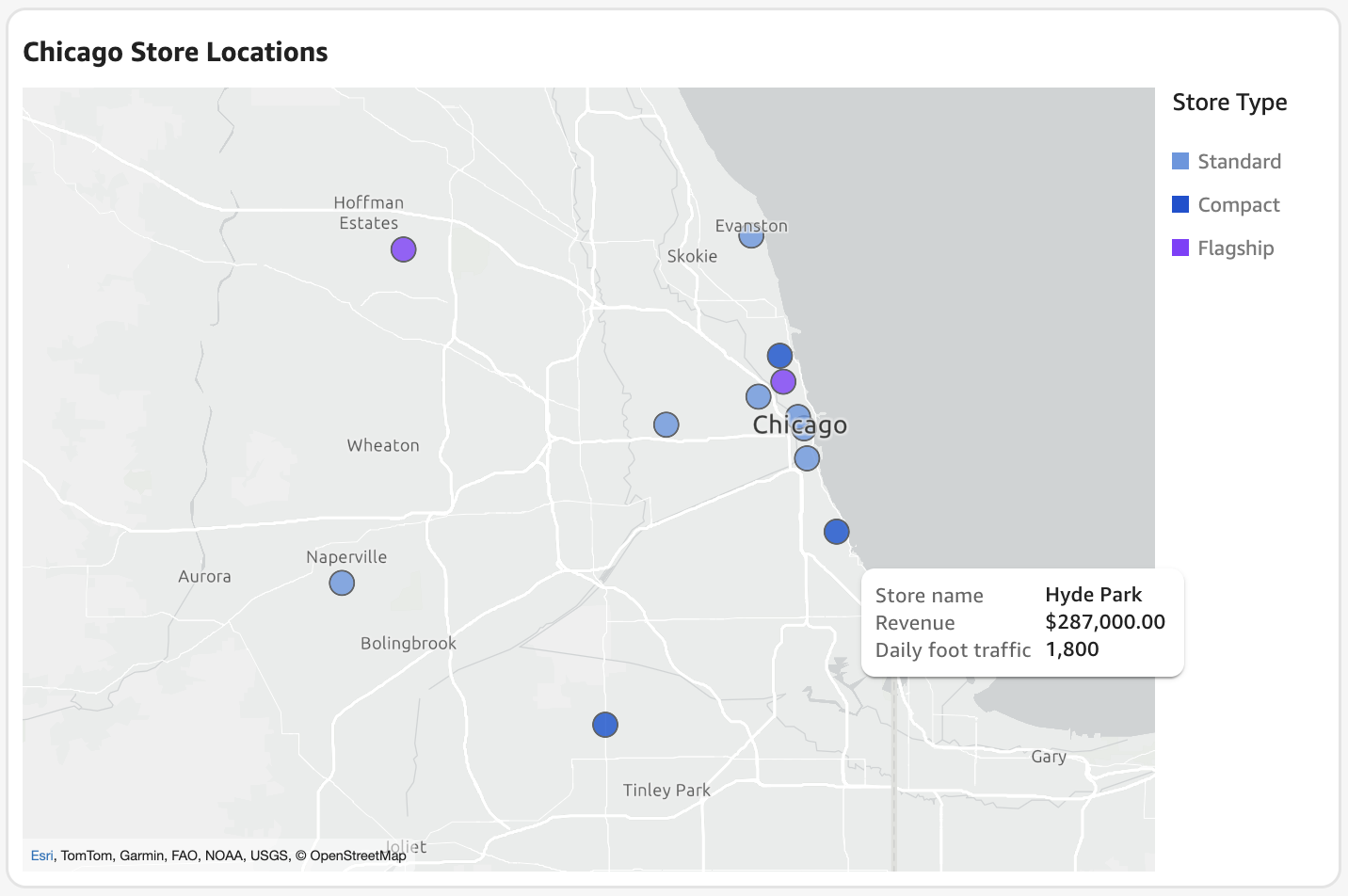
Figure 6: Store locations as points with map navigation disabled to lock the metro-area view
Advanced use cases
The previous sections cover a standard layer map setup. Use the following techniques when you need more control over what readers see, want to combine geometry types in a single view, or need geometry that changes over time.
Controlling the viewport
When you need to control the viewport in layer map visuals, you can pan and zoom to the view you want manually. Then disable map navigation to lock it in place. For use cases where you need more precise boundaries or programmatic control, you can set the exact viewport coordinates through the visual definition using the Quick Sight APIs.
The layer map visual stores its viewport configuration in the MapState property within ChartConfiguration. This property accepts two fields:
- Bounds: The geographic coordinates defining the minimum visible area (North, South, East, West).
- MapNavigation:
ENABLEDorDISABLEDto control whether readers can pan and zoom.
Although the bounds property is not exposed on the console, you can set these bounds when working with the dashboard definition JSON for programmatic asset management. For example, to define the bounds, modify the MapState block in the visual definition, then call the CreateDashboard or UpdateDashboard APIs.
The bounds define the minimum area that is guaranteed to be visible. The map zooms to make sure this entire area fits within the visual container. For the tightest fit with minimal extra space added to the map, match the aspect ratio of your bounds to the shape of your visual container.
Layering geometries
For use cases that require combining multiple geometry types into a single view, you can layer visuals on top of each other. For example, the following screenshot demonstrates plotting customer locations as points within US regional boundaries defined by polygons. This composition shows which territories have the highest customer density and can be used to correlate with other metrics present in the dataset like performance.
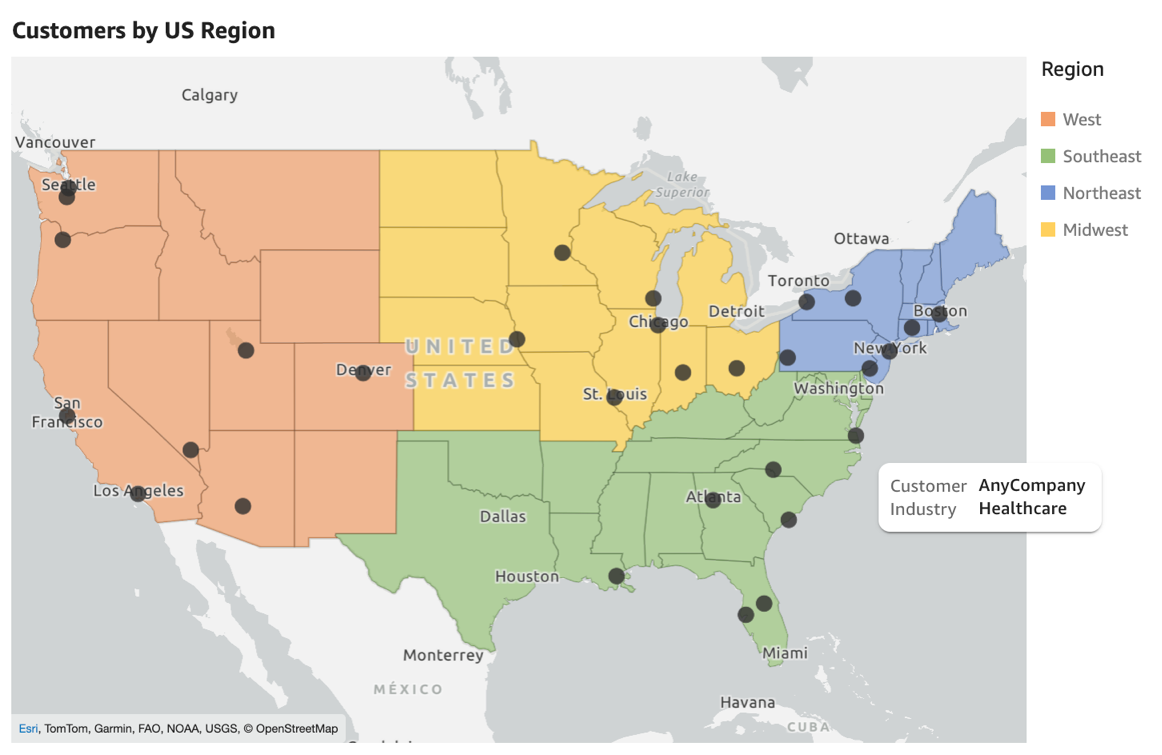
Figure 7: Customer points layered within polygon regional boundaries
This second example demonstrates combining points as stops along a delivery route path. The LineString draws the planned route, and Point features mark each scheduled stop along the way.
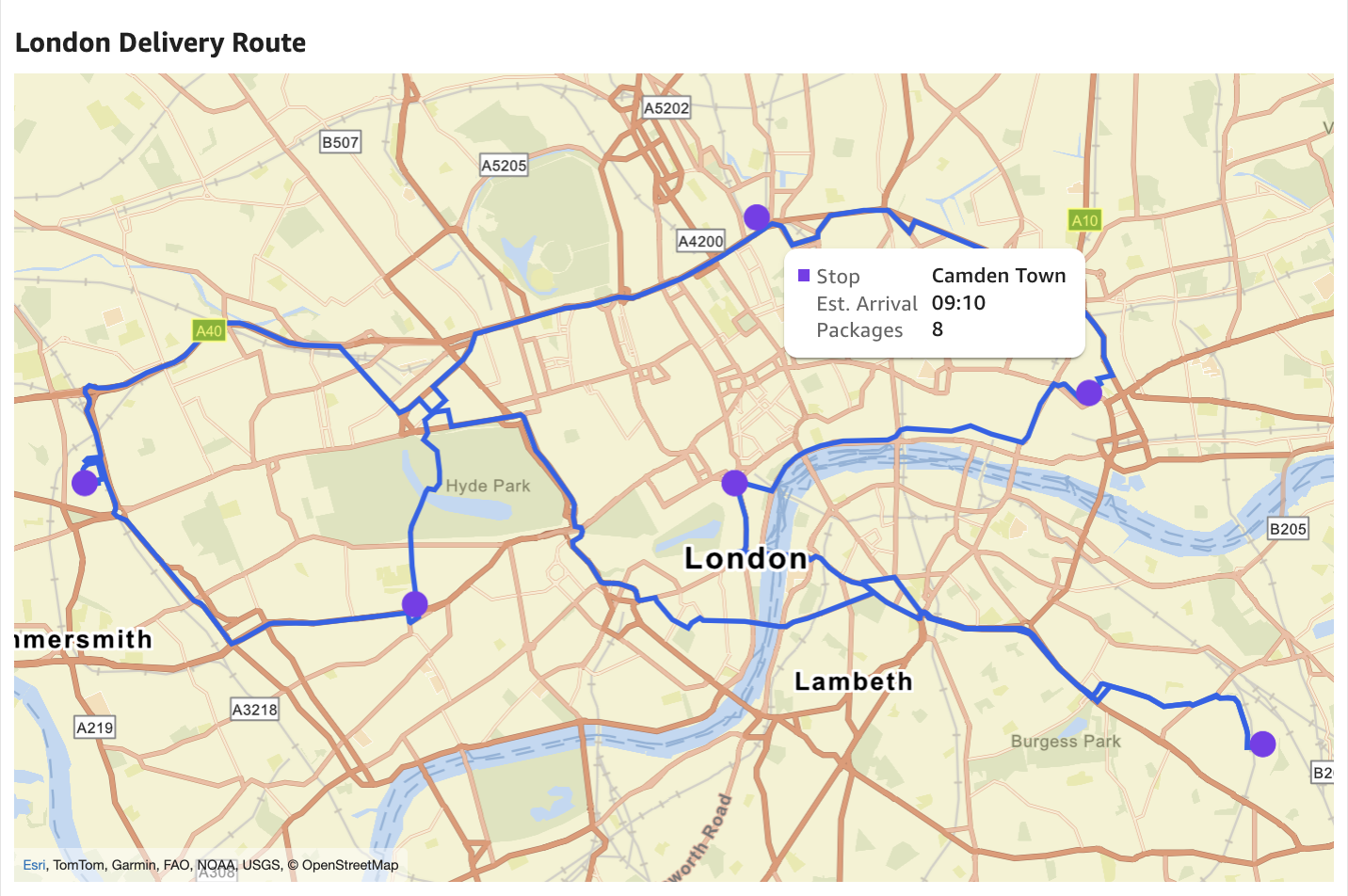
Figure 8: A delivery route drawn as a LineString with Point markers for each stop
To layer geometries, you stack multiple layer map visuals on top of each other, following these steps:
- Use free-form layout: Change the sheet layout setting to free-form so that visuals can overlap and stack.
- Create two layer map visuals: Create the two layer map visuals that you combine into a single view, such as one using a Point GeoJSON file and one using a LineString GeoJSON file.
- Use matching bounds: Using the approach previously described for controlling the viewport, verify all layer map visuals use identical bounds to have the same underlying map view.
- Disable panning and zooming: For each layer map visual, disable the panning and zooming under Map options so that alignment stays the same.
- Hide the base map and background on upper layer: Set the upper visual’s background to hidden under Display settings and disable the base map under Map options.
- Stack the visuals: Move the top visual on top of the base layer using drag-and-drop or by matching precise size and position coordinates under Display settings.
Layer ordering follows the visual stacking order in the free-form layout. To change a visual’s position in the stack, choose the menu icon (three dots) on the visual, then choose Send backward or Bring forward. Readers can access the tooltip of the topmost visual, so place the layer that readers need details from on top. Each sheet supports up to five layer map visuals.
Dynamically updating GeoJSON
Unlike other Quick Sight visuals where data refreshes through SPICE or Direct Query, layer map geometry lives in the GeoJSON file itself. When your dataset refreshes on schedule, the metrics update (for example, colors change and tooltip values refresh), but the geometry remains at its original position.
To update what appears on the map, like a new route, new point locations, or updated boundaries, you need to update the GeoJSON file and republish the dashboard. You can replace a GeoJSON file manually through the Quick Sight console by editing the layer map visual within the Analysis and uploading a new file. This works for infrequent changes such as updating territory boundaries quarterly or adding a new store location.
For automated, on-demand, or dynamic updates, the process involves Amazon Simple Storage Service (Amazon S3) and the Quick Sight APIs outlined in the following steps:
- Upload the new GeoJSON to Amazon S3: Generate your updated geometry and save it to an Amazon S3 bucket. Custom solutions can use other AWS services such as Amazon Location Service to create the GeoJSON files.
- Reference the file on the dashboard definition: The dashboard definition contains a StaticFiles array with a
SpatialStaticFileentry for each GeoJSON file. Modify the file reference to the S3 location of your updated file entry for each GeoJSON file. - Call the UpdateDashboard API: Submit the updated definition with the new file reference using the UpdateDashboard API.
- Call the UpdateDashboardPublishedVersion API: Publish the change so it is visible to dashboard readers with the UpdateDashboardPublishedVersion API.
The following example uses this pattern to support on-demand map updates in an embedded dashboard to generate optimal routes between locations and waypoints. Although outside the scope of this post, this represents an advanced use case that combines each of the preceding approaches.
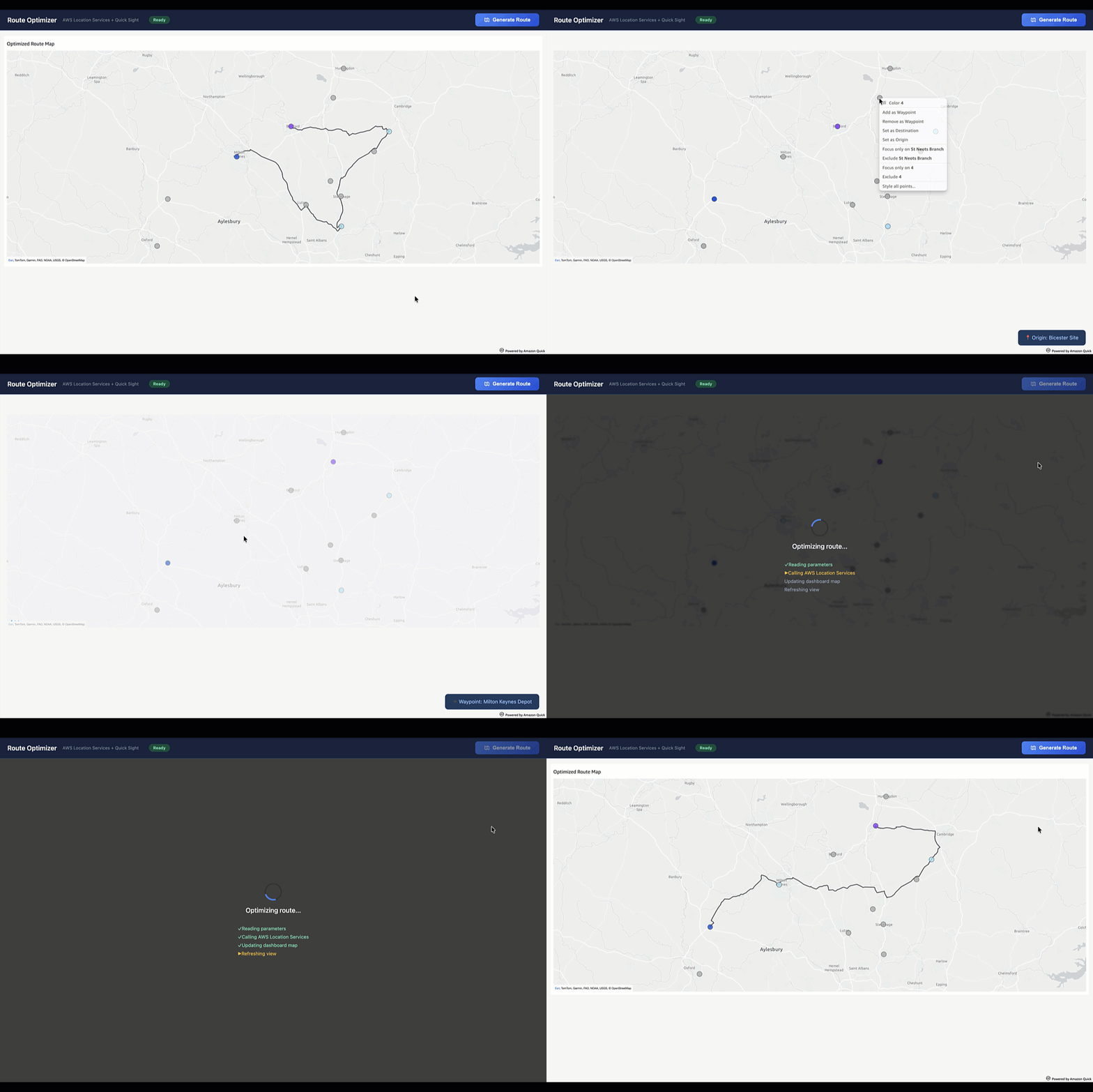
Figure 9: On-demand route generation in an embedded dashboard
Conclusion
In this post, we showed how to use Point and LineString geometry in Amazon Quick Sight layer maps to plot specific locations and the routes between them. We covered the GeoJSON structure and dataset join that layer maps require, and compared layer map points with the native point map. We also walked through advanced techniques for controlling the viewport, layering separate visuals into one view, and refreshing GeoJSON files with Amazon S3 and the Quick Sight APIs.
To learn more about layered maps, refer to the Amazon Quick Sight layered maps documentation. Visit the Amazon Quick Community to connect with peers and stay updated on the newest features and resources.